Cancellation
FeatsClub supports canceling individual tickets and marking events as canceled. This page covers how cancellation works for both individual attendee tickets and entire events.
Individual Ticket Cancellation
You can cancel a specific attendee's ticket without affecting other ticket holders or the event itself.
How to Cancel a Ticket
- Navigate to the Event Dashboard and select the event.
- Open the Ticket Sales view (for ticketed events) or the Responses view (for RSVP/Sign-up events).
- Find the attendee whose ticket you want to cancel.
- Select the attendee's row to open their ticket details.
- Select the Cancel Ticket option.
- Confirm the cancellation when prompted.
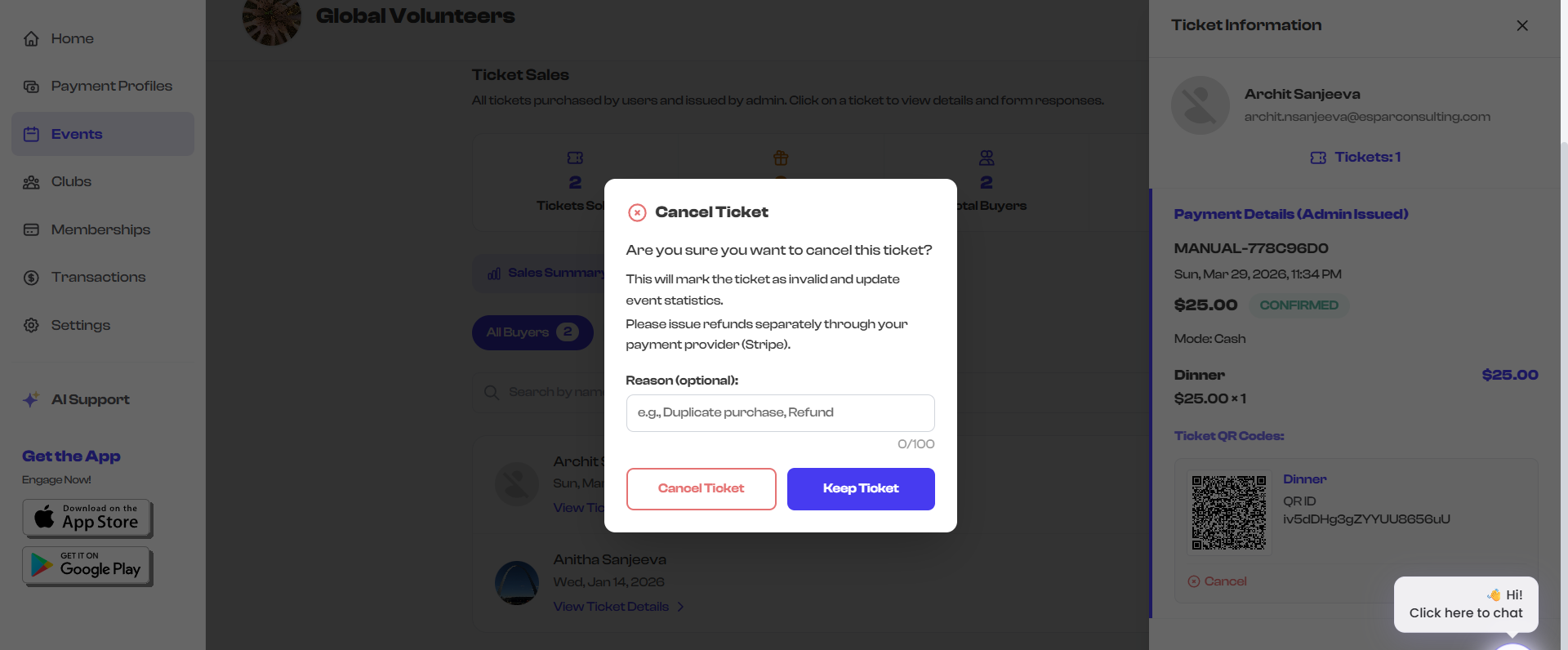
What Happens When a Ticket Is Canceled
When you cancel an individual ticket:
- The ticket's status changes to Canceled and displays a red canceled badge.
- The ticket's QR code is invalidated -- it can no longer be used for check-in. If the attendee tries to check in with a canceled ticket, the scanner will reject it.
- The ticket is excluded from revenue calculations -- the Tickets Sold count decreases and the revenue total is adjusted.
- The attendee's registration record is preserved -- you can still see their information in the attendee list, but their ticket is marked as canceled.
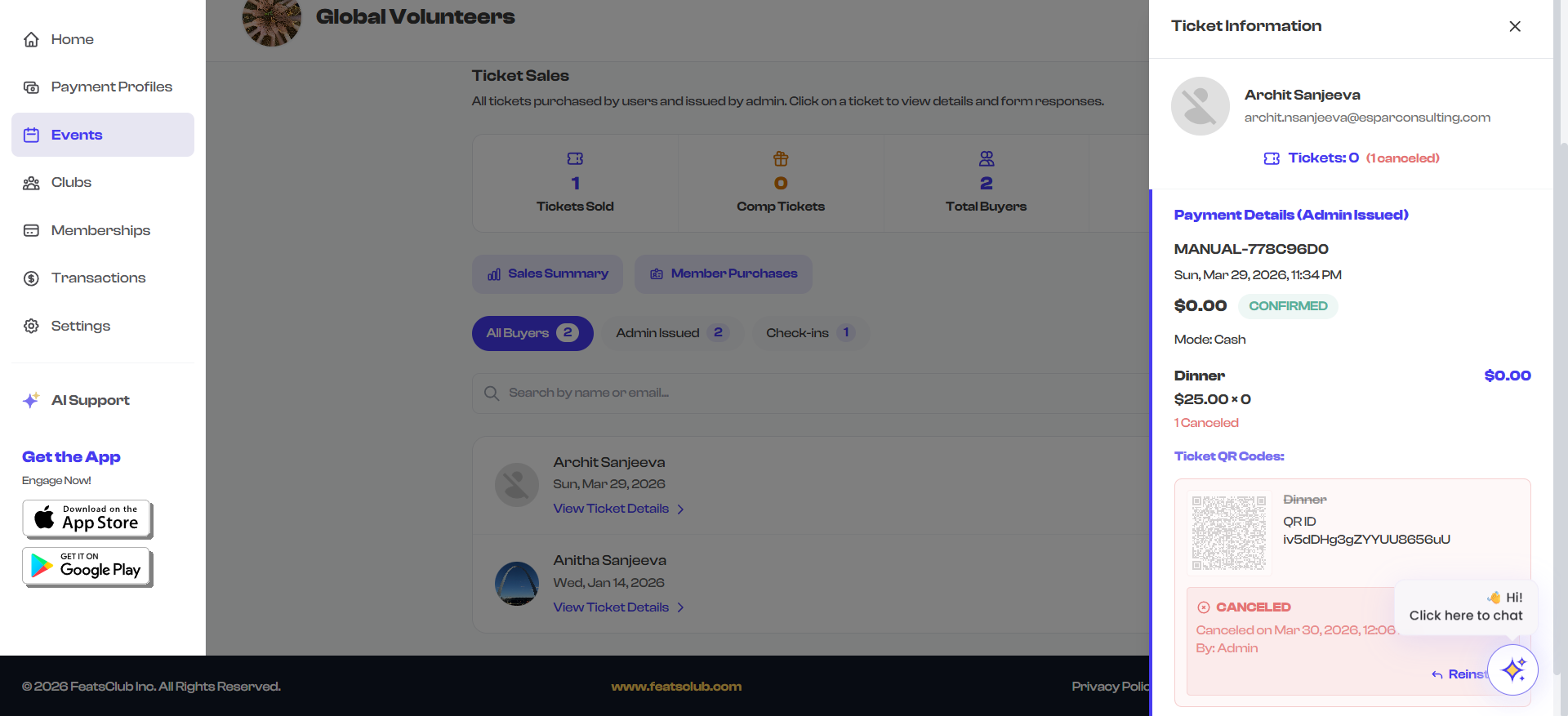
Ticket cancellation is a significant action. Once a ticket is canceled, the QR code associated with that ticket is permanently invalidated. Make sure you intend to cancel before confirming.
Refunds
Canceling a ticket on FeatsClub does not automatically process a refund. Refunds for online ticket purchases must be handled separately through your payment processor's dashboard.
Stripe (USD Events)
To issue a refund for a Stripe-processed ticket:
- Cancel the ticket on FeatsClub (as described above).
- Log in to your Stripe Dashboard.
- Navigate to Payments and find the transaction.
- Issue a full or partial refund through Stripe.
Cashfree (INR Events)
For Cashfree-processed tickets, log in to your Cashfree dashboard to process the refund after canceling the ticket on FeatsClub.
FeatsClub records the cancellation on the platform, but refund processing is handled through your payment provider (Stripe or Cashfree). Always cancel the ticket on FeatsClub first, then process the refund through your payment dashboard.
Event-Level Cancellation
In addition to canceling individual tickets, you can mark an entire event as canceled. This signals to all attendees and visitors that the event is no longer taking place.
How to Cancel an Event
When an event is canceled:
- The event's status changes to Canceled.
- A red Canceled badge is displayed on the event detail page and on the dashboard.
- The event remains in your dashboard for record-keeping purposes.
- The public event page displays a cancellation notice.

Canceling an entire event does not automatically cancel individual tickets or issue refunds. You will need to handle ticket cancellations and refunds separately if needed. Communicate the cancellation to your attendees through your own channels.
Cancellation and Check-in
A canceled ticket cannot be used for check-in. If someone presents a canceled ticket's QR code at the venue:
- The mobile app scanner will reject the code and display an error indicating the ticket has been canceled.
- The attendee will not be checked in.
Canceled Tickets in Reports
Canceled tickets remain visible in the ticket sales and response views for your records, but they are clearly marked with the canceled status. They are excluded from:
- Tickets Sold count
- Revenue totals
- Check-in eligibility
This ensures your event statistics accurately reflect active, valid tickets.
Summary
| Action | Scope | Automatic Refund | QR Code |
|---|---|---|---|
| Cancel individual ticket | One attendee's ticket | No -- process manually via Stripe/Cashfree | Invalidated |
| Cancel event | Entire event | No -- process each ticket manually | Individual tickets unaffected unless separately canceled |