Duplicating Events
Duplicating an event lets you create a new event based on an existing one. All of the original event's details are copied into a new draft, which you can then modify before publishing. This is especially useful for recurring events, seasonal programs, or events that share similar configurations.
How to Duplicate an Event
- Navigate to the Event Dashboard.
- Select the event you want to duplicate to open its detail page.
- Look for the Duplicate or Copy option in the event actions.
- A new event creation form opens with all fields pre-populated from the original event.
- The new event starts as a Draft -- it is not published automatically.
- Modify any details you need to change (dates, title, pricing, etc.).
- Save as Draft or Publish when you are ready.
Alternative Method: Copy from Event Type Selection
You can also duplicate an event during the creation flow:
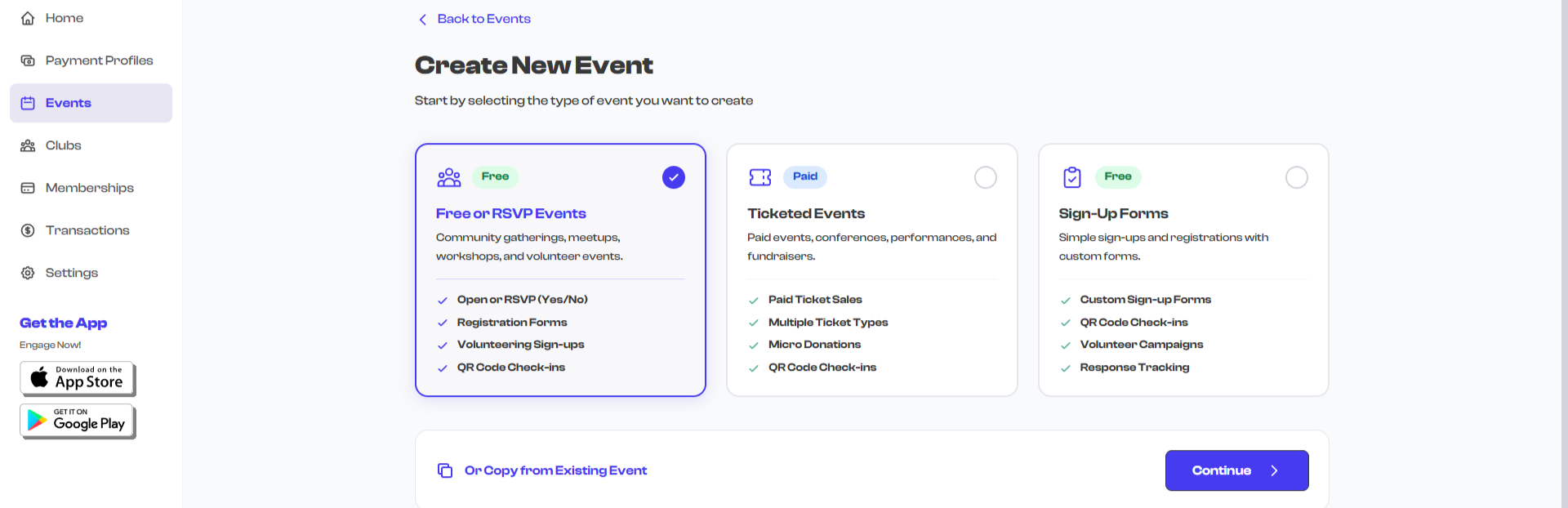
- From the Event Dashboard, select Create Event.
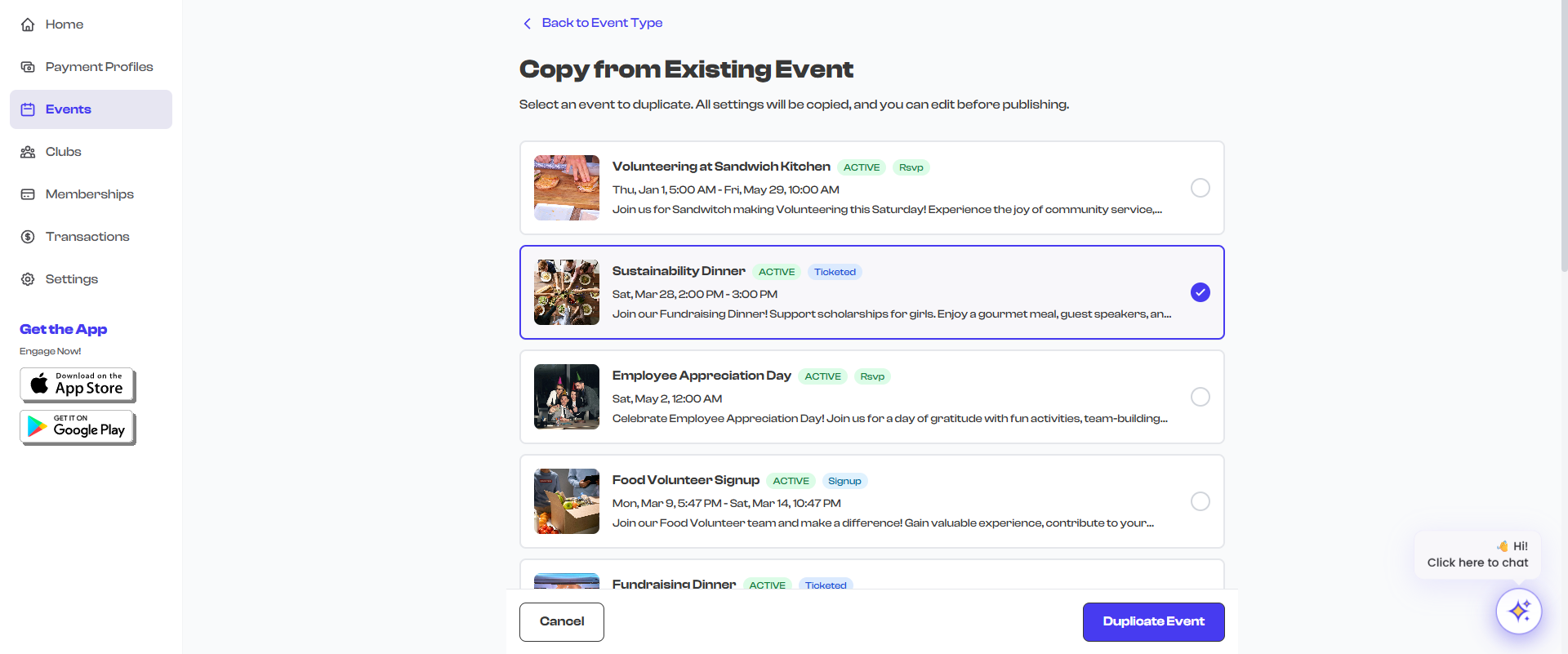
- On the event type selection screen, look for the Copy from Existing Event option at the bottom.
- Select an existing event from the list.
- The creation form opens pre-filled with that event's details.
What Gets Copied
When you duplicate an event, the following details are carried over to the new draft:
| Detail | Copied |
|---|---|
| Title | Yes |
| Description | Yes |
| Category | Yes |
| Venue / Location | Yes |
| Ticket types and pricing | Yes |
| Registration forms | Yes |
| Media (photos, videos) | Yes |
| Hosts | Yes |
| Agenda items | Yes |
| Attachments | Yes |
| Social media links | Yes |
| Micro donation settings | Yes |
| RSVP / Sign-up configuration | Yes |
What Is Not Copied
The following data is specific to the original event and is not carried over:
| Detail | Not Copied | Why |
|---|---|---|
| Event status | New event starts as Draft | You control when to publish |
| Ticket sales and revenue | Starts fresh at zero | Sales belong to the original event |
| RSVP / Registration responses | Starts fresh at zero | Responses belong to the original event |
| Check-in records | None | Check-ins belong to the original event |
| Dates and times | Cleared or reset | You should set new dates for the new event |
| Event ID | New ID generated | Each event has a unique identifier |
Dates are typically cleared or reset when duplicating, since the new event will almost certainly have different dates. Be sure to set the correct start and end dates before publishing the duplicated event.
Common Use Cases
Recurring Events
If you host a weekly workshop or monthly meetup, duplicate the previous occurrence to quickly set up the next one. Update the date and any session-specific details, and publish.
Seasonal Programs
For programs that repeat each season or semester (such as a spring class series), duplicate the previous season's event to carry over the structure, ticket types, and registration forms. Update the dates, adjust pricing if needed, and publish.
Similar Events with Variations
If you are hosting multiple events that share the same venue, hosts, and format but differ in topic or date, duplicate one and adjust the unique details for each.
After duplicating an event, always review every step of the form before publishing. Details like dates, capacity limits, and pricing may need updating for the new occurrence.
Duplicated Event Lifecycle
A duplicated event follows the same lifecycle as any newly created event:
- Draft -- The duplicated event starts here. Review and edit as needed.
- Publish -- When ready, publish to make it visible to the public.
- Active -- The event is live and accepting registrations or ticket sales.
See Event Status Lifecycle for the full status flow.