Recurring Events
If your event happens on a regular schedule -- such as a weekly class, a monthly meetup, or a daily workshop -- you can set it up as a recurring event instead of creating individual events each time.
Recurring event settings are configured as part of Step 2: Date & Time in the event creation wizard.
Setting Up Recurrence
Below the date and time fields, you will find the Repeat dropdown. By default, it is set to "Does not repeat." To make your event recurring, select a frequency from the dropdown.
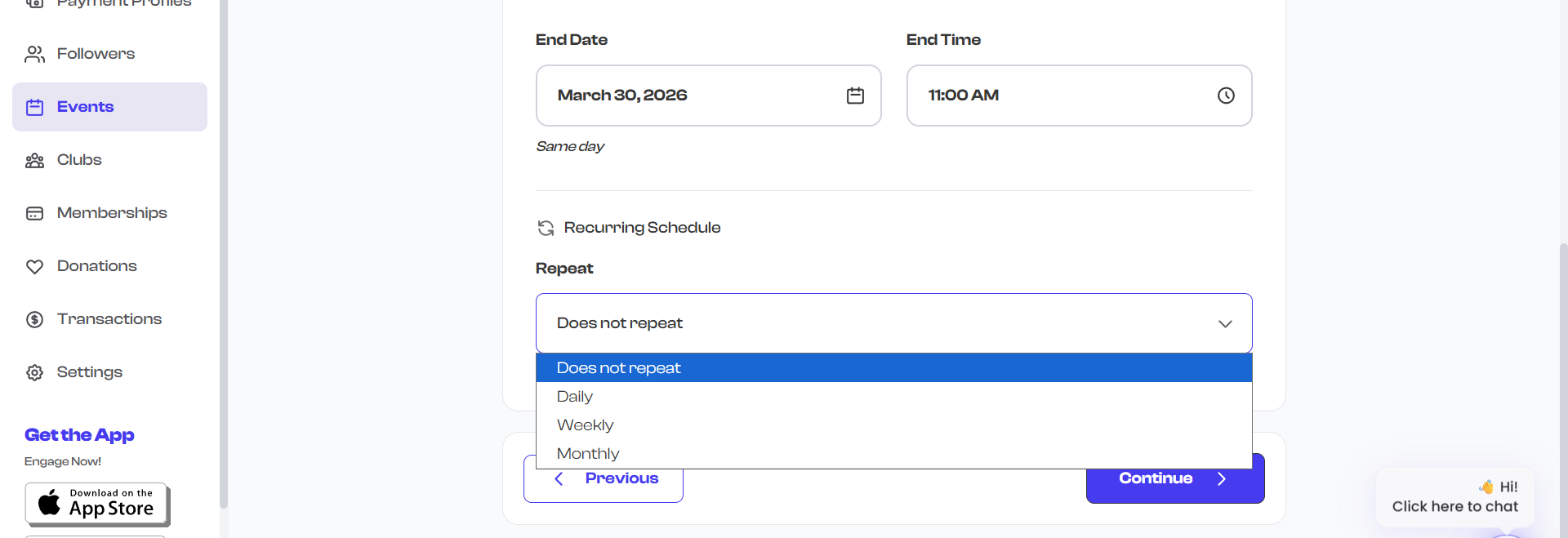
Recurrence Frequencies
| Frequency | Description | Example |
|---|---|---|
| Does not repeat | A one-time event (default) | A single workshop on March 25 |
| Daily | Repeats every day (or every N days) | A 5-day training bootcamp |
| Weekly | Repeats every week (or every N weeks) | A weekly yoga class every Tuesday |
| Every 2 weeks | Repeats every two weeks | A bi-weekly book club meeting |
| Monthly | Repeats every month (or every N months) | A monthly board meeting on the 15th |
Interval Control
For Daily, Weekly, and Monthly frequencies, you can adjust the interval to repeat at a custom cadence:
- Every 1 week = every week (standard weekly)
- Every 2 weeks = every other week
- Every 3 days = every three days
- Every 2 months = every other month
The interval defaults to 1 (every occurrence of the selected frequency).
How Date and Time Work with Recurrence
When recurrence is enabled, the date and time fields behave differently:
- Start Date -- The date of the first occurrence of the recurring event.
- Start Time -- The time each occurrence begins.
- End Date -- This field is hidden when recurrence is active. The end of the series is controlled by the recurrence end settings (see below).
- End Time -- The time each occurrence ends. This represents the duration of each individual occurrence, not the end of the series.
When recurrence is active, a message appears in place of the End Date picker: "End date is set in Recurring Schedule below." This reminds you that the series end date is controlled by the recurrence settings, not the End Date field.
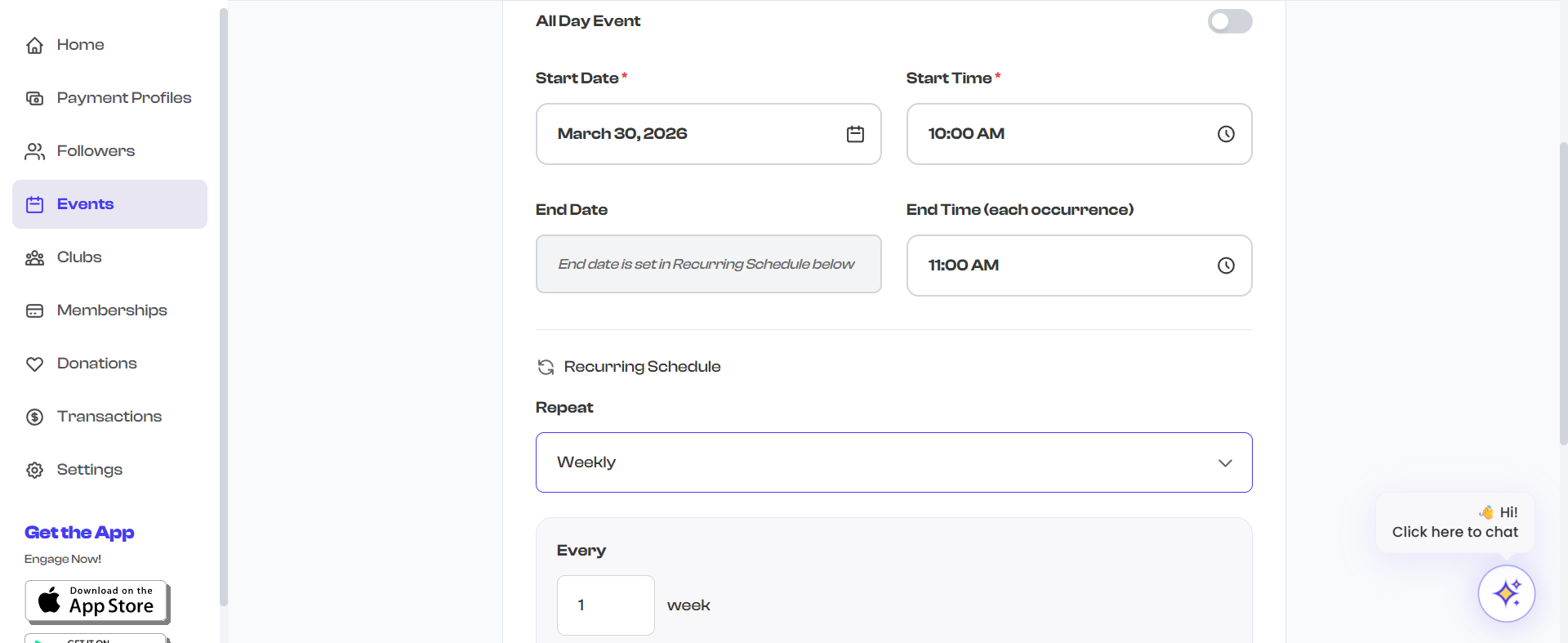
Recurrence End Options
Every recurring event needs to know when to stop repeating. FeatsClub offers three options:
1. No End Date
The event repeats indefinitely (technically for up to 10 years). Use this for ongoing classes or meetups that do not have a planned end date.
- The event remains active until you manually archive or cancel it.
- Displayed as "No end date set" in the review step.
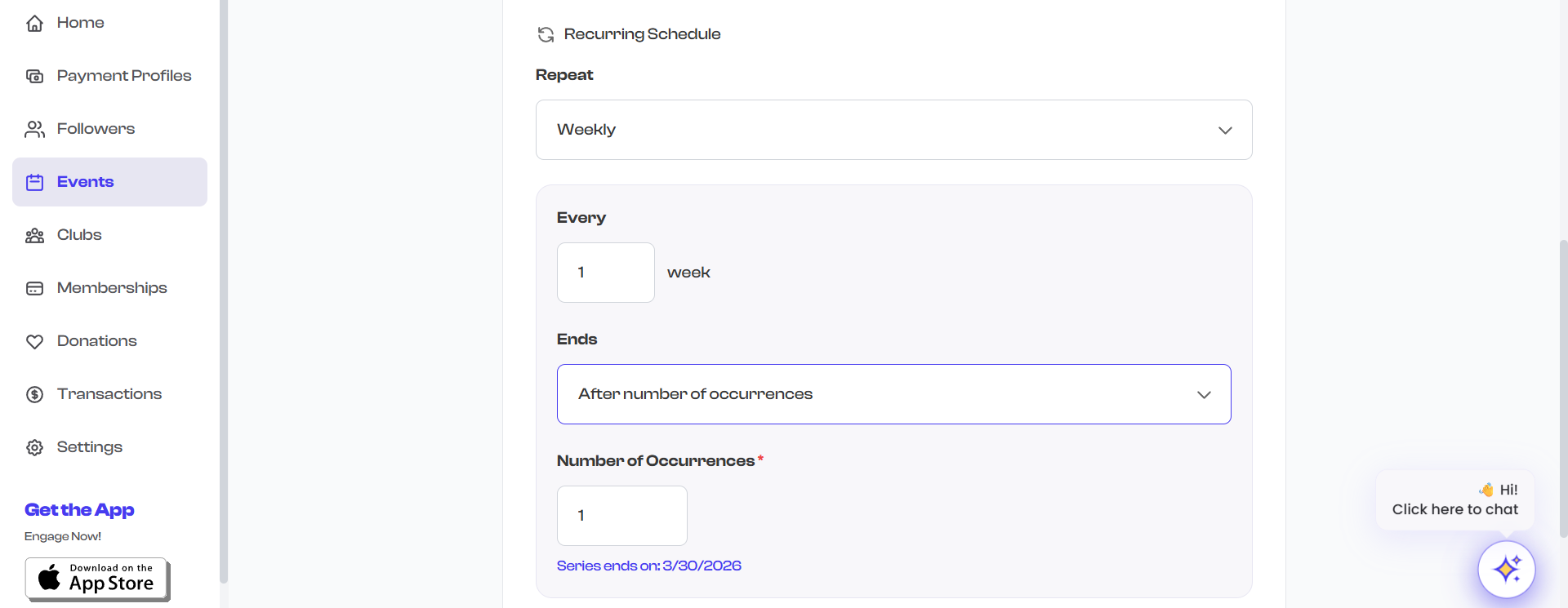
2. After a Number of Occurrences
The event repeats a specific number of times, then stops.
- Enter the number of occurrences (e.g., "10 times").
- FeatsClub calculates and displays the projected end date based on the frequency and count. For example, a weekly event starting March 1 with 10 occurrences would show: "Series ends on: May 3, 2026."
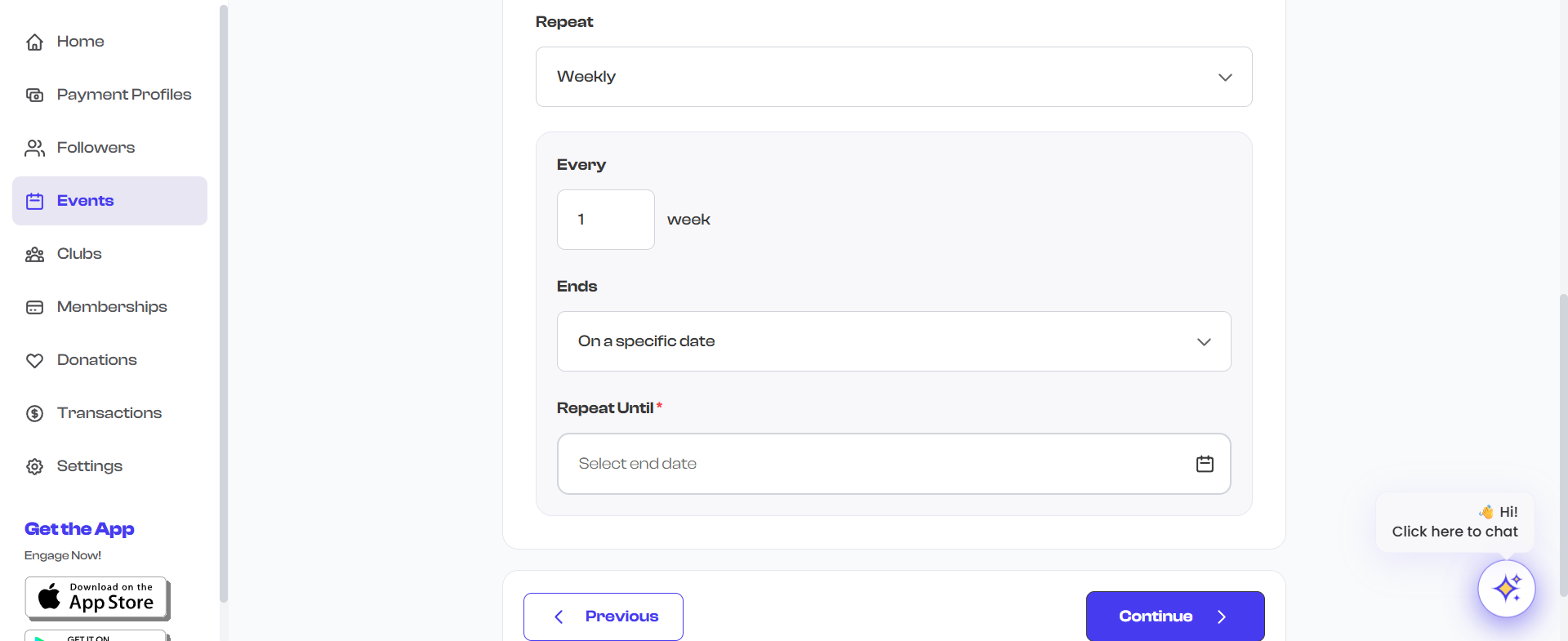
3. Until a Specific Date
The event repeats until a chosen end date.
- Click the end date field to open a calendar picker.
- The event will continue to recur at the specified frequency until that date.
- The recurrence end date must be after the event start date. If it is not, a validation error is shown.
Recurrence Summary
| Setting | What It Controls |
|---|---|
| Frequency | How often the event repeats (Daily, Weekly, Every 2 weeks, Monthly) |
| Interval | The gap between occurrences (every 1, 2, 3, etc.) |
| End option | When the series stops (never, after N times, or until a date) |
| Start Date/Time | When the first occurrence begins |
| End Time | When each individual occurrence ends (duration per occurrence) |
Validation Rules
FeatsClub validates your recurrence settings to prevent conflicts:
- If you choose "Until a specific date", the end date must be after the start date. Otherwise, you will see: "Recurrence end date must be after the start date."
- If you choose "After a number of occurrences", the count must be at least 1. Otherwise, you will see: "Please specify the number of occurrences."
- If recurrence is enabled but no end option is selected, you will be prompted to choose one.
How Recurring Events Appear
Once published, recurring events are indicated on event cards with a recurring icon. On the event detail page:
- The recurrence pattern is displayed (e.g., "Every week" or "Every 2 weeks").
- The series end date or occurrence count is shown.
- Individual occurrences can be tracked for attendance and check-ins.
If you need to make a change to a single occurrence (for example, canceling one session due to weather), you can edit the event after creation. Changes to the event apply to the entire series.
Multi-Day Events vs. Recurring Events
It is important to understand the difference:
- Multi-day event -- A single event that spans multiple consecutive days (e.g., a 3-day conference from March 10 to March 12). Set the start date and end date to different days, with recurrence set to "Does not repeat."
- Recurring event -- An event that happens repeatedly at regular intervals (e.g., every Tuesday from March to June). Set the start and end date/time for a single occurrence, then configure the recurrence frequency.
Next Steps
After configuring the schedule and recurrence, proceed to:
- Venue & Location -- if you have not set it yet
- The next step in the wizard (RSVP settings, ticket configuration, etc.)