Capacity and Limits
Controlling ticket availability ensures you do not oversell your event and helps you manage demand for free tickets. FeatsClub provides three mechanisms for this: per-ticket inventory limits, per-user limits for free tickets, and a manual sold-out flag.
Setting Ticket Inventory
The Set Ticket Inventory toggle in the ticket edit panel lets you cap the total number of tickets available for a specific ticket type.
- Open the ticket you want to edit by selecting its card.
- In the Ticket Options section, find the Set Ticket Inventory toggle and turn it on.
- Enter the Maximum Tickets for all Users. This is the total number of this ticket type that can be sold across all purchasers.
- Save the ticket.
When the ticket inventory is reached, the ticket automatically displays as Sold Out to attendees.
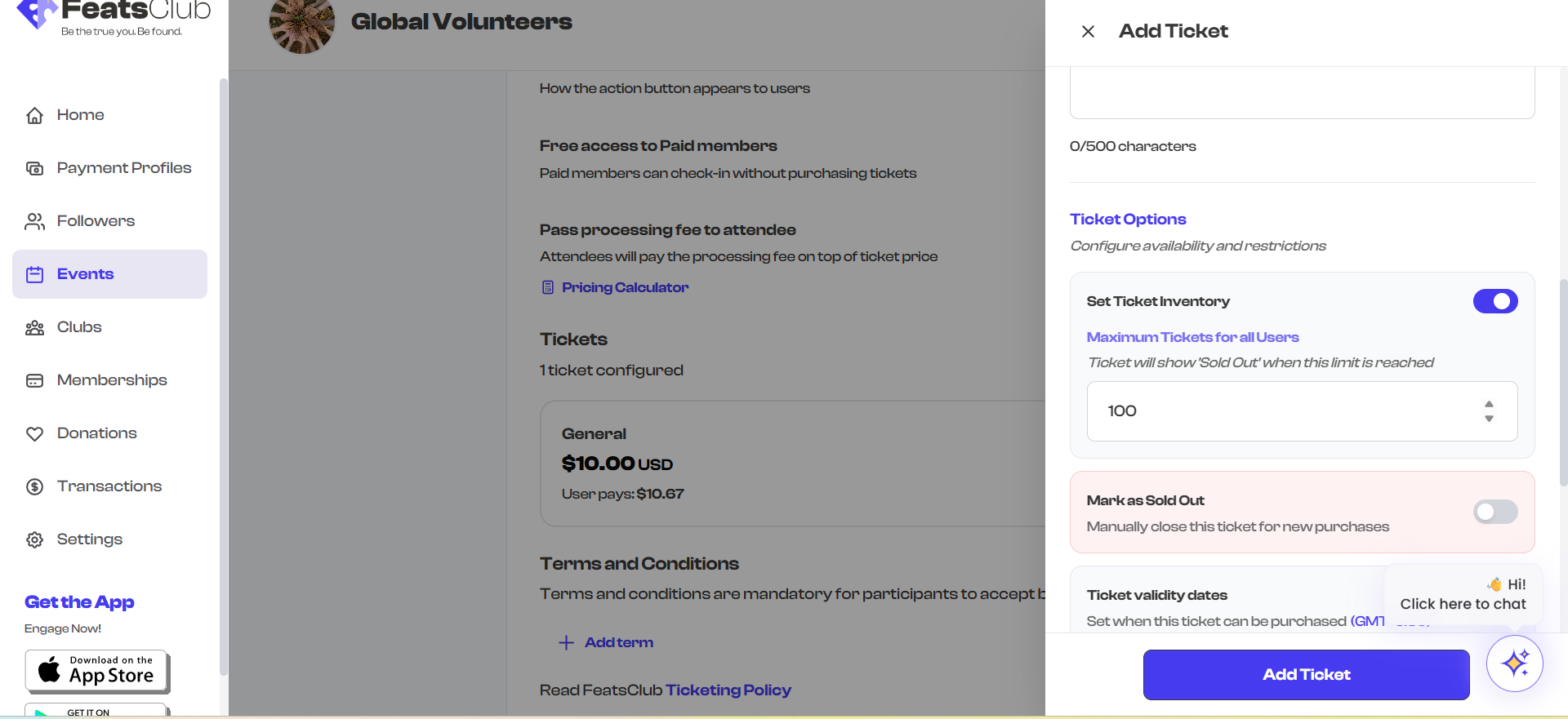
The inventory limit applies per ticket type, not across the entire event. If you have a "General Admission" ticket with a limit of 100 and a "VIP" ticket with a limit of 20, the event can have up to 120 total attendees.
When to use ticket inventory
- Venue capacity -- Your venue has a fixed number of seats.
- Tiered pricing -- You want to sell a limited number of early-bird tickets before switching to regular pricing.
- Exclusive experiences -- VIP or backstage passes with a hard cap.
Per-User Limits for Free Tickets
For free tickets (price set to $0), an additional Max tickets per user field appears in the ticket edit panel. This prevents a single person from claiming an unreasonable number of free tickets.
- Set the ticket price to 0.
- The Max tickets per user field appears automatically.
- Enter the maximum number of tickets one person can claim (e.g., 2).
- If you leave this blank, there is no per-user limit.

Always set a per-user limit on free tickets. Without a limit, a single person could claim dozens of tickets, depleting your inventory and preventing others from registering.
The per-user limit option only appears for free tickets. For paid tickets, the payment itself serves as a natural deterrent against excessive claiming.
Manually Marking as Sold Out
Sometimes you need to stop ticket sales before the inventory is exhausted -- for example, if you need to hold seats for walk-ins or have reached a practical capacity limit.
The Mark as Sold Out toggle lets you manually close a ticket type for new purchases at any time.
- Open the ticket you want to mark as sold out.
- In the Ticket Options section, find the Mark as Sold Out toggle.
- Turn it on. The ticket immediately shows a red Sold Out badge and is no longer available for purchase.
To reopen the ticket for sales, simply turn the toggle off.

Marking a ticket as sold out does not affect tickets that have already been purchased. Those tickets remain valid.
How Capacity is Displayed
On the ticket card in the configuration list, capacity-related information appears as badges:
| Badge | Meaning |
|---|---|
| Max 100 | Ticket inventory is set to 100 |
| Sold Out | Ticket is sold out (automatically or manually) |
| Limit 2/user | Each person can claim at most 2 tickets (free tickets only) |
These badges give you a quick visual overview of the capacity settings across all your ticket types without opening each one individually.
Combining Capacity Controls
You can use multiple capacity controls together for fine-grained management:
| Scenario | Configuration |
|---|---|
| Limited seats, free event | Set price to 0, set ticket inventory to venue capacity, set per-user limit to 2 |
| VIP with hard cap | Set price, set ticket inventory to VIP capacity |
| General admission with soft cap | Set ticket inventory, use manual sold-out if you need to pause sales early |
| Unlimited free tickets, limited per person | Set price to 0, leave ticket inventory off, set per-user limit |