QR Codes
QR codes provide a fast and reliable way to check in attendees at your event venue. When enabled, each ticket purchase generates a unique QR code that can be scanned at the door using the FeatsClub mobile app.
How QR Codes Work
When the QR code feature is enabled for your event:
- After purchase -- Each ticket generates a unique QR code tied to that specific ticket and attendee.
- Ticket confirmation -- The QR code is included in the ticket confirmation that the attendee receives.
- At the venue -- Event staff scan the QR code using the FeatsClub mobile app to check in the attendee.
- Validation -- The app verifies the ticket is valid, has not already been scanned, and marks the attendee as checked in.
Enabling QR Codes
QR code generation is controlled at the event level in your event settings, not at the individual ticket level.
- Navigate to your event settings.
- Find the Issue QR Code toggle.
- Turn it on.
- All tickets purchased for this event will include a QR code.

The QR code setting applies to the entire event. You cannot enable QR codes for some ticket types and disable them for others within the same event.
Scanning QR Codes at the Venue
QR code scanning is done through the FeatsClub mobile app. This feature is not available on the web dashboard.
Check-in process
- Open the FeatsClub mobile app on your phone or tablet.
- Navigate to your event's check-in screen.
- Point the camera at the attendee's QR code.
- The app displays the ticket details and confirms whether the attendee is valid.
- If valid, the attendee is marked as checked in.
What the scanner checks
| Check | Description |
|---|---|
| Ticket validity | Confirms the QR code belongs to a valid ticket for this event |
| Duplicate scan | Prevents the same QR code from being used twice |
| Attendee details | Displays the attendee's name and ticket type |
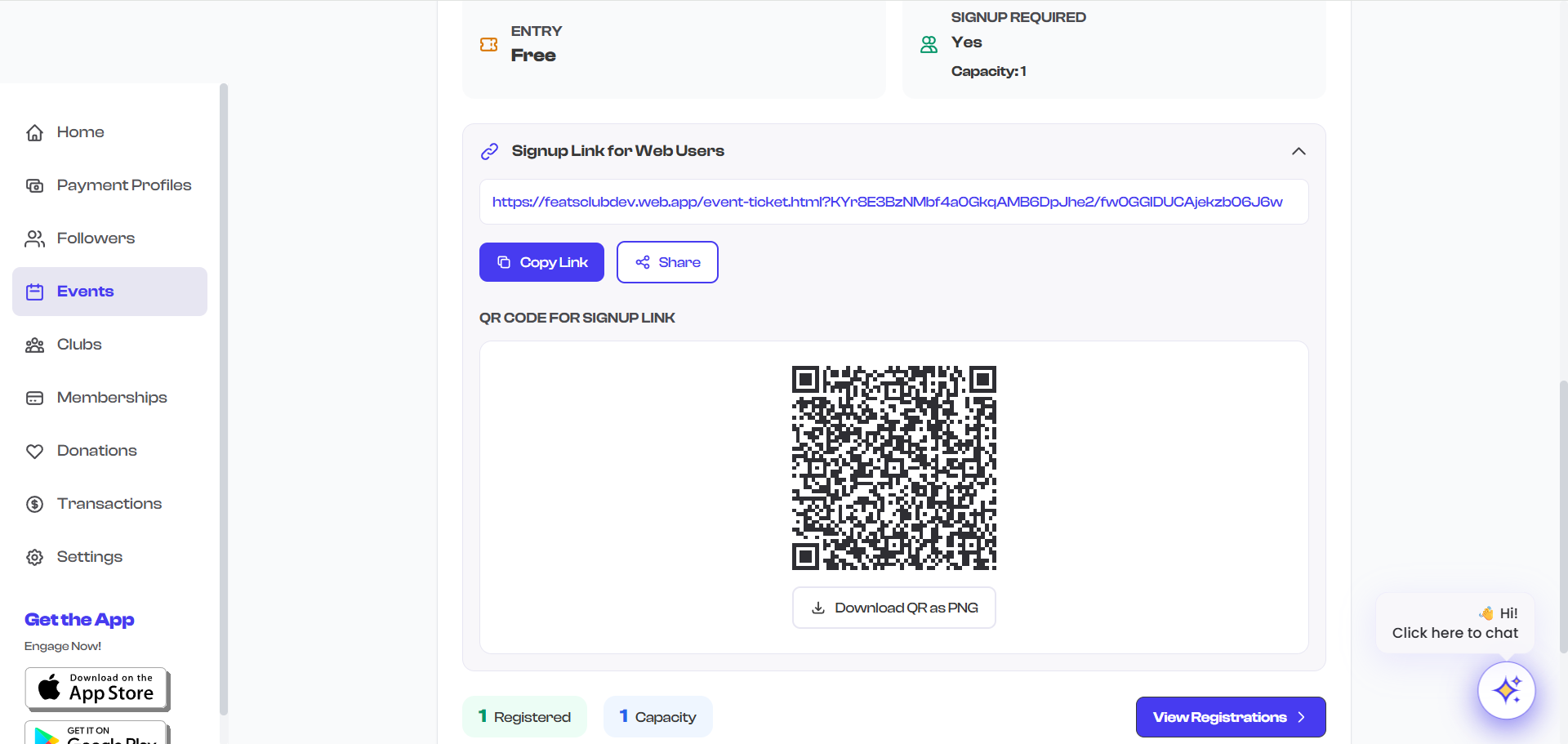
QR code scanning for check-in is available exclusively on the FeatsClub mobile app. Download the app from the App Store or Google Play.
How Attendees Receive Their QR Code
After purchasing a ticket, attendees receive their QR code through:
- Ticket confirmation -- The QR code is included in the confirmation details accessible through FeatsClub.
- Mobile app -- Attendees who have the FeatsClub app can view their QR code directly in their ticket details.
Attendees can present the QR code on their phone screen for scanning at the venue.
Best Practices
- Test scanning before the event -- Do a test scan with a team member's ticket to make sure the scanner works properly.
- Have backup check-in -- Maintain an attendee list for manual check-in in case of connectivity issues.
- Multiple devices -- For large events, set up multiple check-in stations with separate devices running the FeatsClub app.
- Brightness reminder -- Ask attendees to increase their screen brightness before showing their QR code. This makes scanning faster and more reliable.
QR Codes and Group Registrations
When a ticket has group registration configured, the QR code is tied to the ticket purchase, not to individual forms. The ticket buyer presents one QR code that covers the entire group.
QR Codes and Complimentary Passes
Complimentary passes included with a ticket purchase are covered by the same ticket's QR code. The check-in process validates the entire ticket, including any complimentary guests.