Terms and Conditions
Terms and conditions let you define rules and policies that attendees must accept before purchasing tickets. You can also include a custom note that is sent in the ticket confirmation email.
Adding Terms and Conditions
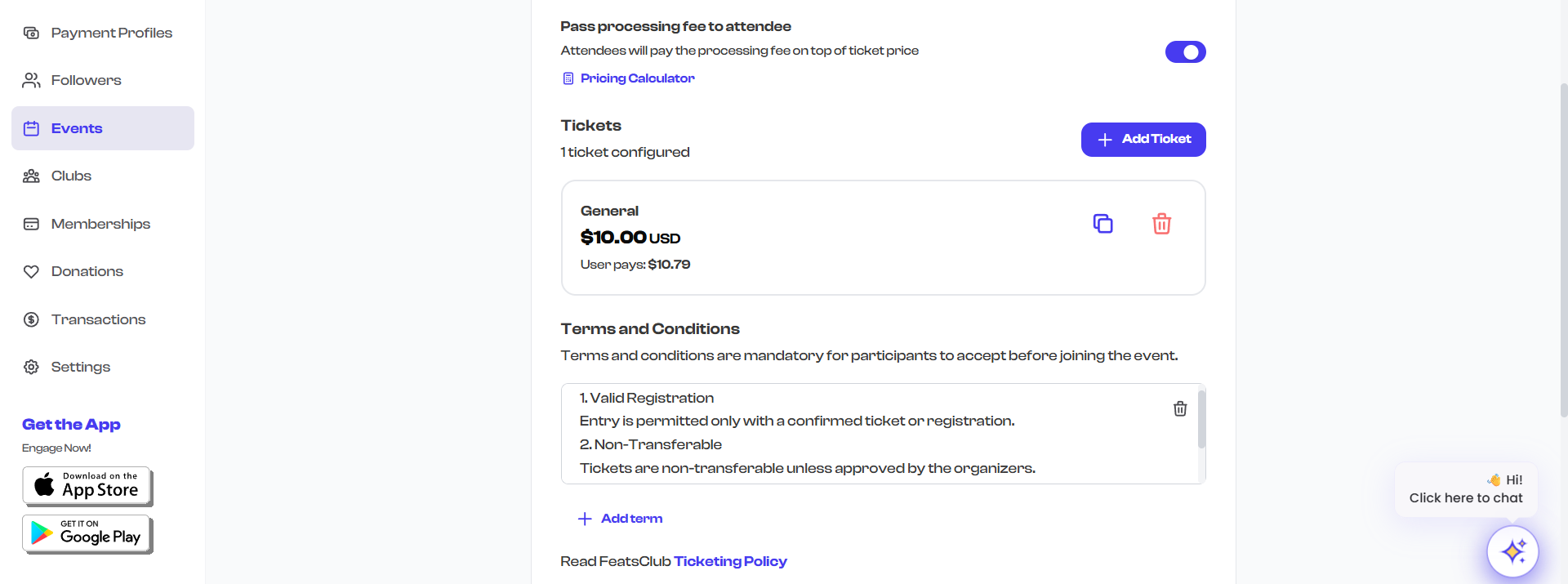
Terms are added from the main ticket configuration page (not inside individual ticket settings). They apply to the entire event -- all ticket types share the same set of terms.
- Scroll to the Terms and Conditions section on the ticket configuration page.
- Select Add term to create a new term.
- Type the term text in the text area (maximum 500 characters per term).
- Add additional terms as needed. You can add up to 8 terms total.
- To remove a term, select the trash icon in the top-right corner of the term text area.
Limits
| Setting | Limit |
|---|---|
| Maximum number of terms | 8 |
| Maximum characters per term | 500 |
Terms are presented to attendees as checkboxes during the checkout process. Each term must be individually accepted before the purchase can proceed.
Writing Effective Terms
Each term should be a clear, self-contained statement. Here are examples of common terms:
| Category | Example Term |
|---|---|
| Refund policy | "Tickets are non-refundable. In case of event cancellation, a full refund will be issued within 14 business days." |
| Age restriction | "This event is for attendees aged 18 and older. Valid ID will be required at entry." |
| Photography consent | "By attending, you consent to being photographed or recorded. Images may be used for promotional purposes." |
| Code of conduct | "All attendees must follow the event code of conduct. Violations may result in removal without refund." |
| Health and safety | "Attendees are responsible for their own health and safety. The organizer is not liable for injuries sustained during the event." |
| Liability waiver | "Participation in physical activities is at your own risk. By purchasing this ticket, you acknowledge and accept this risk." |
Keep each term focused on a single topic. It is better to have several short, clear terms than one long paragraph covering multiple topics. Attendees must accept each term individually, so separate topics make the process transparent.
How Terms Appear During Checkout
When attendees proceed to checkout:
- All terms are displayed as individual checkboxes.
- The attendee must check each box to acknowledge and accept the term.
- The purchase button remains disabled until all terms are accepted.
This ensures that every attendee explicitly agrees to your policies before completing their purchase.
Note for Attendees
Below the terms and conditions section, you will find a Note for Attendees field. This is a free-text message (up to 500 characters) that is included in the ticket confirmation email sent to attendees after purchase.
Use this note for practical information attendees need to know, such as:
- Hotel registration links for conference group rates
- Parking information and lot numbers
- Dress code requirements
- What to bring (documents, equipment, etc.)
- Check-in procedures
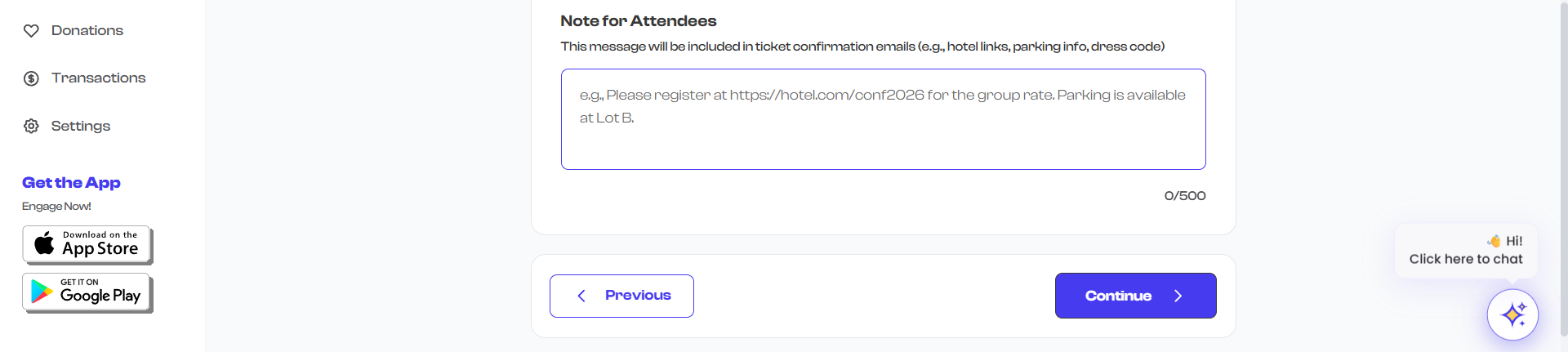
The attendee note is informational only -- it does not require acceptance. It is included in the confirmation email so attendees have the information they need to prepare for the event.
FeatsClub Ticketing Policy
At the bottom of the Terms and Conditions section, a link to the FeatsClub Ticketing Policy is displayed. This is the platform-level ticketing policy that applies to all events on FeatsClub. Your custom terms are in addition to this platform policy.