Pricing and Fees
Every paid ticket on FeatsClub involves two types of fees: the payment processor fee (Stripe) and the FeatsClub platform fee. As an organizer, you decide whether these fees are absorbed by your organization or passed on to the attendee.
Setting the Base Price
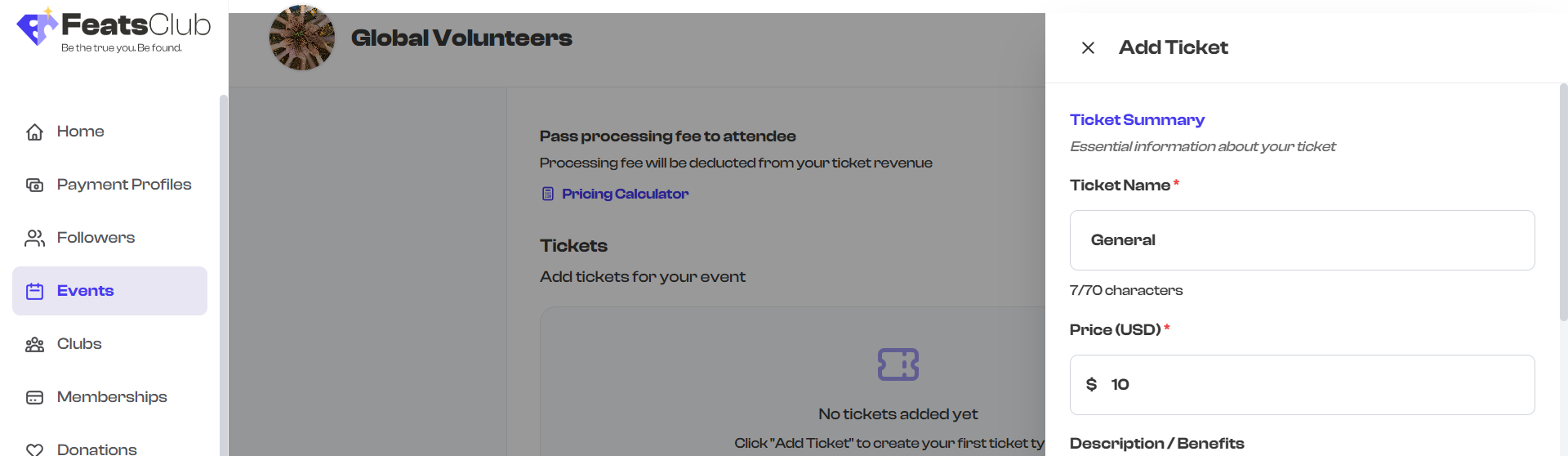
When adding or editing a ticket, you enter the base price -- the amount you want to receive for each ticket sold. This is the price before any fees are applied.
- Enter a value in your organization's currency (USD or INR, based on your payment profile).
- Set the price to 0 to create a free ticket.
- Prices are entered in standard decimal format (e.g., 25.00, 149.99).
Understanding the Fee Structure
FeatsClub uses a transparent fee model. Each ticket sale incurs two fees:
| Fee Type | Description |
|---|---|
| Stripe processing fee | 2.9% + $0.30 per transaction (standard Stripe rate) |
| FeatsClub platform fee | A percentage-based fee that varies by tier |
The exact platform fee percentage depends on your organization's plan and the ticket price tier. Use the built-in Pricing Calculator to see the precise breakdown for any price point.
Processing Fee Passthrough
The Pass processing fee to attendee toggle on the ticket configuration page controls who pays the fees:
When the toggle is ON (attendee pays)
- Fees are added on top of the base price.
- The user pays price is automatically calculated and displayed.
- You receive the full base price for each sale.
- The calculation formula is:
(base price + fixed fee) / (1 - fee percentage).
Example: You set a base price of $50.00. With fees passed to the attendee, the attendee might pay $54.12, while you receive the full $50.00.
When the toggle is OFF (organization absorbs)
- Attendees pay exactly the base price.
- Fees are deducted from your revenue.
- You receive the base price minus the processing and platform fees.
Example: You set a base price of $50.00. The attendee pays $50.00. After fees are deducted, you receive approximately $46.80.

This toggle applies to all ticket types for the event. You cannot pass fees to attendees for some tickets and absorb them for others within the same event.
Using the Pricing Calculator
FeatsClub provides a built-in Pricing Calculator to help you understand the fee breakdown for any price point before you finalize your ticket pricing.
To open the calculator:
- Find the Pricing Calculator link below the processing fee toggle.
- Select it to open the calculator in a side panel.
- Enter any base ticket price.
- The calculator shows you the exact fee breakdown: Stripe fee, platform fee, total fees, and the final price the attendee pays (or the amount deducted from your revenue, depending on the toggle setting).
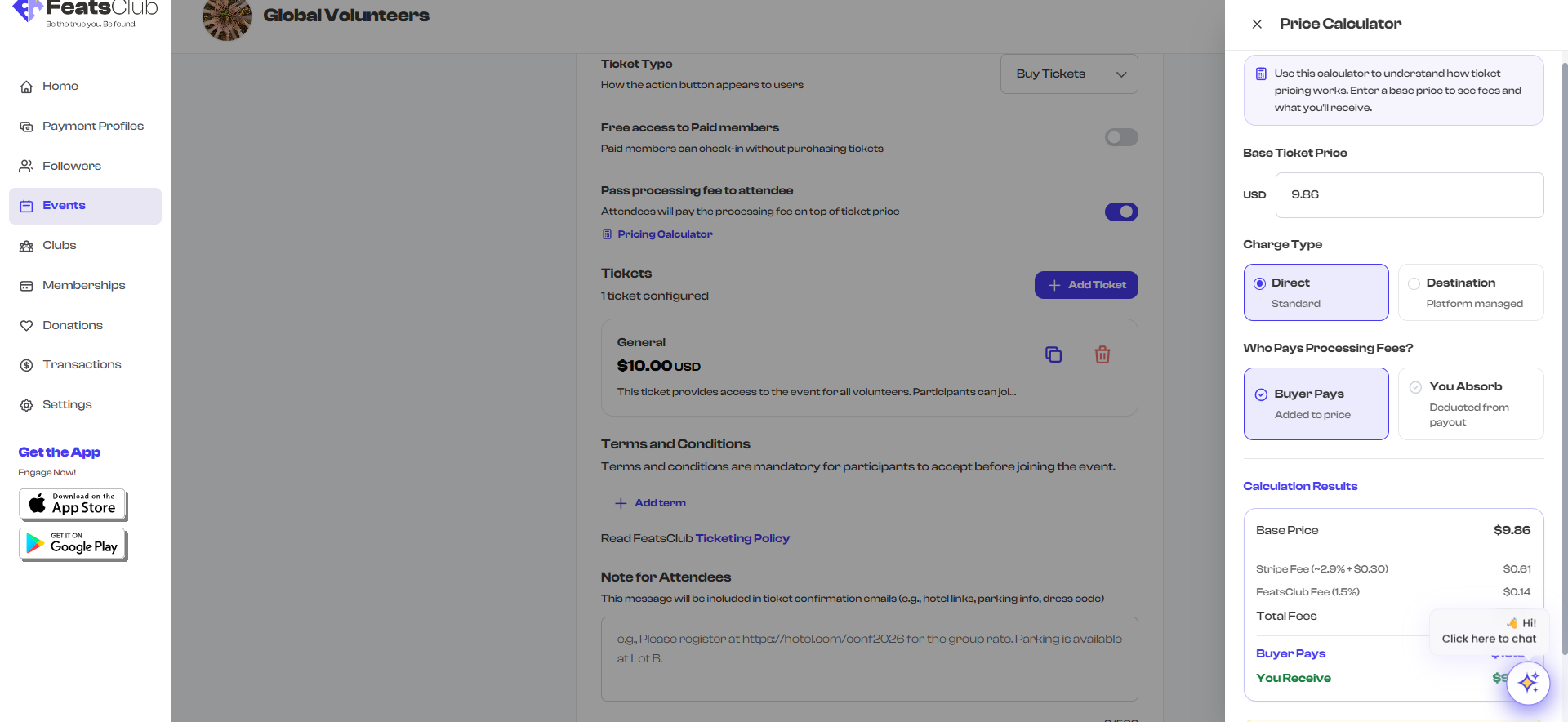
Use the pricing calculator before setting your ticket prices. It helps you determine the right base price to reach your target revenue per ticket, accounting for fees.
How the Fee Breakdown is Displayed
When you edit a ticket and enter a base price, the ticket card in the list shows two prices:
- Base price -- The large, bold price you set (e.g., "$50.00 USD").
- User pays -- Shown below the base price when fees are passed to the attendee. This is the total the attendee will be charged at checkout.
If fees are absorbed by the organization, the "User pays" line does not appear because the attendee pays exactly the base price.
Free Tickets
Setting the base price to 0 creates a free ticket. Free tickets have no fee calculations -- attendees are not charged, and no processing fees apply.
Free tickets display a green FREE badge on the ticket card.
For free tickets, consider setting a per-user limit to prevent abuse. See Capacity and Limits for details.
Currency
The currency for all tickets is determined by your organization's payment profile:
- USD for organizations with a US-based Stripe account.
- INR for organizations with an India-based Cashfree account.
You cannot mix currencies within a single event. The currency symbol is shown next to the price input field.