Ticket Validity
Ticket validity dates let you control exactly when each ticket type becomes available for purchase and when sales close. This is useful for early-bird pricing, phased releases, and time-limited offers.
How Validity Windows Work
Each ticket type can have an optional validity window defined by two dates:
- Valid from -- The date when the ticket becomes available for purchase. Before this date, attendees cannot see or buy the ticket.
- Valid until -- The date when the ticket is no longer available. After this date, the ticket is automatically hidden from attendees.
If you set only a "Valid from" date without a "Valid until" date, the ticket remains available indefinitely after the start date (until the event itself ends or you manually close it).
Setting Up Ticket Validity
- Open the ticket you want to configure by selecting its card.
- In the Ticket Options section, find the Ticket validity dates toggle.
- Turn it on. Two date picker fields appear.
- Select the Valid from date.
- Optionally select the Valid until date.
- Save the ticket.
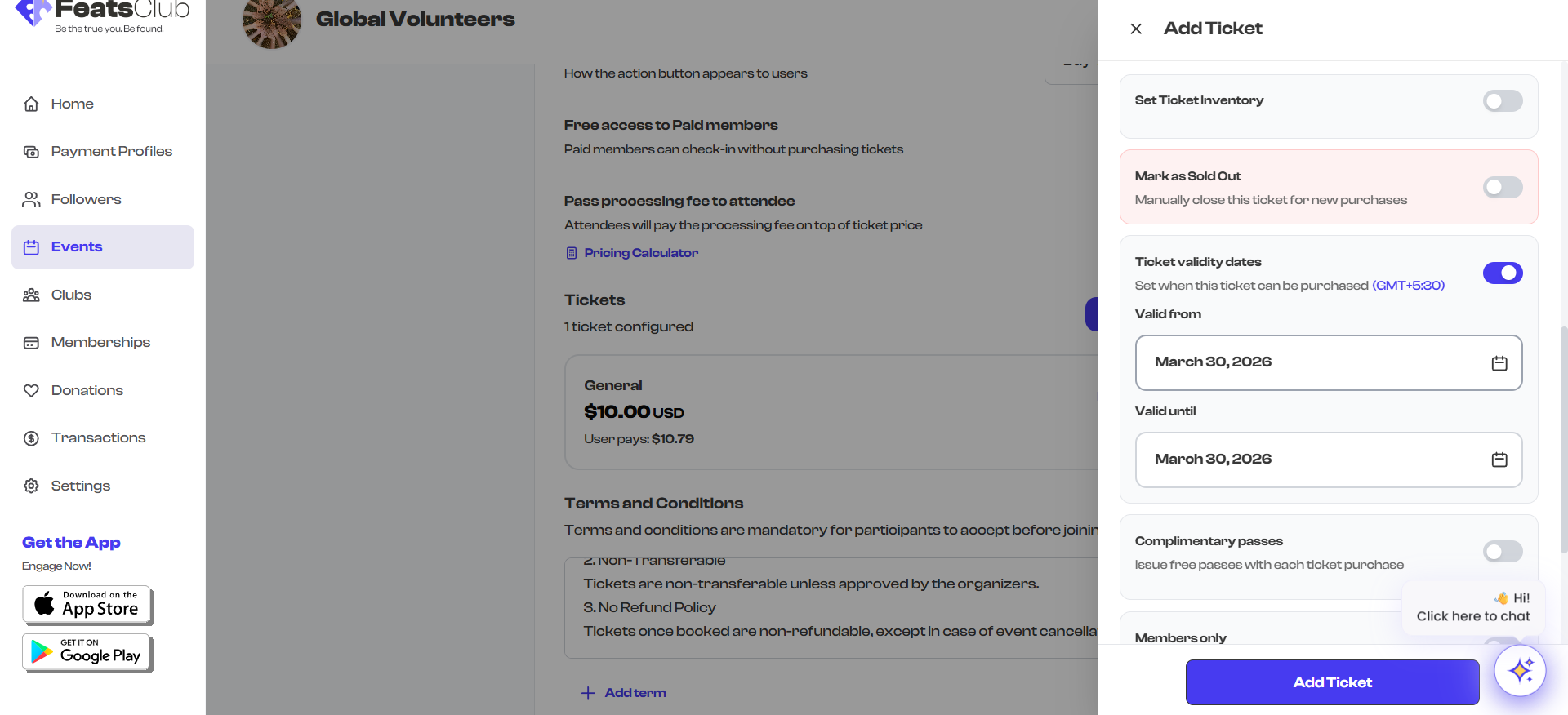
If your event has a timezone set, the validity dates are interpreted in that timezone. The timezone abbreviation (e.g., "EST" or "PST") is displayed next to the "Ticket validity dates" label so you know which timezone the dates refer to.
Validation Rules
- The Valid until date must be after the Valid from date. If you set an end date that is earlier than the start date, a validation error appears.
- Turning the toggle off clears both dates entirely. If you turn it back on, you will need to set the dates again.
How Validity Appears on Ticket Cards
When a ticket has validity dates configured, a badge appears on the ticket card showing the date range:
- Valid Mar 1 - Mar 15 -- The ticket is available only during this window.
- Valid Mar 1+ -- The ticket is available starting March 1 with no end date.
This gives you a quick visual reference across all your ticket types without opening each one.
Common Use Cases
Early-bird pricing
Create an "Early Bird" ticket with a lower price and set the validity window to end two weeks before the event. Create a "Regular" ticket with a higher price and set it to start when the early-bird window closes.
| Ticket | Price | Valid From | Valid Until |
|---|---|---|---|
| Early Bird | $30 | Jan 1 | Feb 15 |
| Regular | $50 | Feb 16 | Mar 30 |
Last-minute sales
Create a "Door Price" ticket that only becomes available on the day of the event.
| Ticket | Price | Valid From | Valid Until |
|---|---|---|---|
| Advance | $40 | Jan 1 | Mar 29 |
| At the Door | $60 | Mar 30 | Mar 30 |
Flash sale
Create a limited-time ticket available for only 48 hours.
| Ticket | Price | Valid From | Valid Until |
|---|---|---|---|
| Flash Sale | $20 | Feb 14 | Feb 16 |
| Regular | $50 | Jan 1 | Mar 30 |
Combine validity windows with capacity limits for maximum control. For example, set an early-bird ticket with both a validity window and a maximum inventory of 50.
Validity vs. Sold Out
These are two separate mechanisms for controlling ticket availability:
| Mechanism | How it works | When to use |
|---|---|---|
| Validity window | Automatic, time-based | Scheduled releases, phased pricing |
| Sold out (manual) | Manual toggle, immediate effect | Emergency cutoff, walk-in reservations |
| Sold out (automatic) | Triggered when inventory runs out | Capacity-limited tickets |
All three can be active on the same ticket. A ticket must satisfy all conditions to be available: it must be within the validity window, not manually sold out, and have remaining inventory.